
Looking for a laptop for video editing? Video editing requires a powerful configuration, including a capable processor, dedicated graphics, sufficient RAM, and fast storage. In this guide, we will walk you through the key specifications to consider and help you choose the right laptop for your video editing needs. At the end of the article, we’ll also recommend three laptops in each price segment to make your decision easier.
Table of Contents
1. How to choose a processor?
The CPU is the most important component of the laptop; it executes instructions, decodes them, and runs programs and the operating system (OS). The CPU’s speed is measured in gigahertz (GPU).
Video editing requires a very strong processor; you need at least a 6-core processor for basic high-definition (HD) editing.
| Tier | Resolution Support | Recommended Cores | CPU Series |
| Entry level | 1080p (full HD), Good for social media clips and travel vloggers | 4 to 6 cores | Intel Core 5 series AMD Ryzen 5 Apple M2 or M3 |
| Mid Level | 4K footage (H. 264/HEVC), Good for streams, casual color grading | 8 to 12 cores | Intel Core i7 series AMD Ryzen 7 series Apple M-Pro series |
| Professional Grade | 4K RAW, 6K or 8K, Good for heavy VFX, multi-layer, and heavy colour grading | 16 cores or above | Intel Core 9 series AMD Ryzen 9 series Apple M-Max / Ultra chip series |
2. Which Graphic Card (GPU) is Good For Video Editing?
A graphics card is a dedicated piece of hardware responsible for rendering images, animations, and video. It handles the complex visual processing required to display everything you see on your screen. Some laptops come with an integrated GPU (iGPU), while more powerful laptops come with a separate dedicated GPU.
GPU Models and Speed
NVIDIA GeForce laptop GPUs: the RTX 30, RTX 40, and RTX 50 series represent three generations of graphics architecture. The biggest differences are in performance, ray tracing, AI features, efficiency, and video-encoding capabilities.
For 1080p editing, RTX 3060/ 3070 and RTX 4050/4060-class GPUs can already be plenty for many users. For 4K editing, heavy effects, colour grading, 3D work, or professional workloads, stepping up to a higher-performance GPU with more VRAM makes more sense.
In short:
RTX 30 → capable but older
RTX 40 → excellent balance of performance and efficiency
RTX 50 → newest features and strongest overall platform
| GPU generation | Video editing recommendation | Why |
|---|---|---|
| RTX 50 Series | ⭐⭐⭐⭐⭐ Best | Newest architecture, strong AI performance, excellent encoding capabilities |
| RTX 40 Series | ⭐⭐⭐⭐ Excellent | Very good performance, AV1 encoding, often better value |
| RTX 30 Series | ⭐⭐⭐ Good | Still capable, but older and less efficient |
How much VRAM do you need?
| Tier | Recommended VRAM |
| Entry level | 6GB to 8GB VRAM |
| Mid Level | 12 GB to 16 GB VRAM |
| Professional Grade | 20 GB to 32 GB VRAM |
3. How to choose RAM for Video Editing?
Random Access Memory is an important component for those looking for an efficient laptop for video editing. Video editing applications rely more heavily on RAM than most laptops come with, and it is impossible to work and edit without a sufficient amount of it; otherwise, it may result in freezing or crashing.
- 16 GB: Minimum for basic editing
- 32 GB: For most serious editors
- 64 GB +: For professional workloads, especially those who work on 4K/6K/8k
Which is better for Video Editing: DDR4 or DDR5?
DDR4 is still a better choice in 2026 for video editing because of the price hikes; the Max Bandwidth is up to 25.6 GB/s per channel, and DDR5 Max Bandwidth is up to 51.2GB/s plus per channel. Here is a direct Comparison for Video Editing
| Feature | DDR4 RAM | DDR5 RAM | Impact on Video Editing |
|---|---|---|---|
| Max Bandwidth | Up to ~25.6 GB/s per channel | Up to ~51.2+ GB/s per channel | DDR5 wins: Shuttles massive 4K/8K source files to the CPU much faster. |
| Common Capacity | 16GB, 32GB, 64GB | 32GB, 64GB, 96GB, 128GB+ | DDR5 wins: High-capacity sticks are more stable and dense for heavy multitasking. |
| Power Stability | Handled by the motherboard | On-board PMIC (Power Management IC) | DDR5 wins: Better voltage regulation reduces crashes during multi-hour renders. |
| System Cost | Low (Cheaper RAM & Motherboards) | Higher (RAM and compatible parts cost more) | DDR4 wins: Saves budget that you can reallocate toward a faster GPU or SSD. |
Before purchasing a laptop, check whether RAM is upgradable; I’d emphasize 24GB as the sweet spot rather than recommending 16 GB.
4. How much Solid State Drive (SSD) is needed?
An SSD is essential for a video editor; the traditional hard drive (HDD) is slow for video editing, as it requires reading and writing enormous files simultaneously. The HDD maxes out around 150 MB/s, whereas modern PCI 4.0 and 5.0 can reach a transfer speed between 5.000MB/s and 14,000MB/s.
| Tier | Recommended SDD Storage |
| Entry level | 512 GB |
| Mid Level | 1TB |
| Professional Grade | 2 TB or more |
How to Set Up Storage
For better performance, use a three-drive system:
- Drive One (internal NVMe SSD): It is the main drive for the operating system and other applications.
- Drive Two (Internal NVMe SSD): Strictly dedicate this as a Scratch Disk or Cache Drive. Keep temporary render files on a separate SSD, which helps keep the main drive from slowing down.
- Drive Three (Can be HDD or SDD): Use it for Mass storage and Archiving; once a project is finished, since speed no longer matters for completed work.
5. How to choose a display?
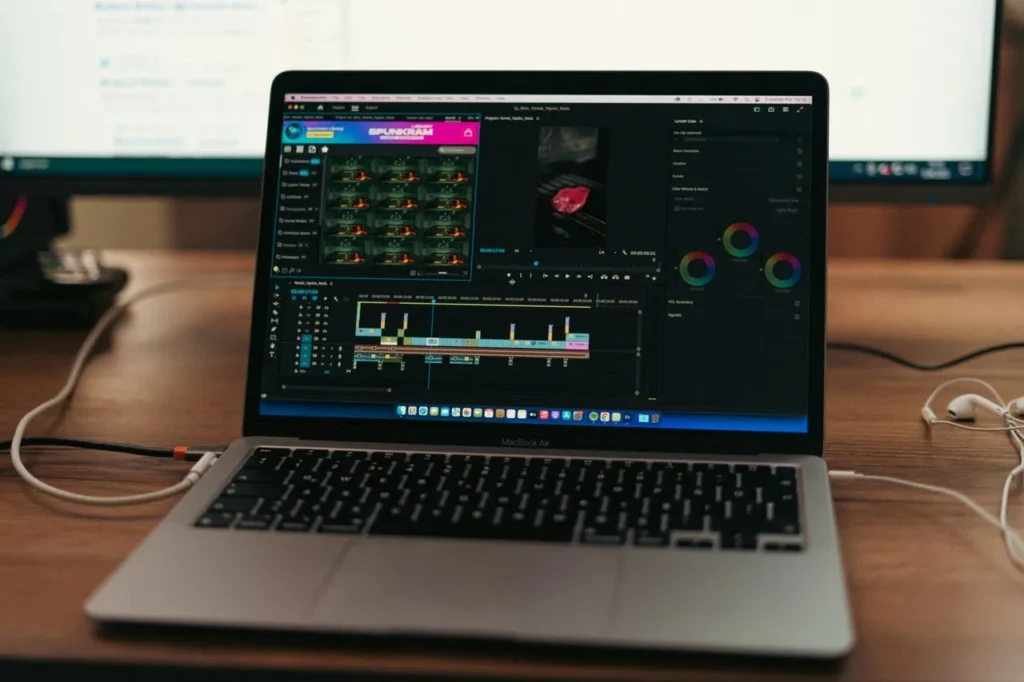
For video editing, a higher refresh rate is not the top priority. Instead, look for a display with accurate colour reproduction, High sRGB/DCI-P3 coverage, high resolution, consistent colours, and good brightness to ensure precise editing and a more reliable representation of your footage.
Look for a UHD display, which is equivalent to around 4,000 pixels in a column and is mostly known as a 4K UHD display. My suggestion for a video editor is to look for an OLED display; it is an advanced technology and shows vibrant colours and keeps images vivid.
Why 100% sRGB is not Enough Anymore
Modern camera capture color data goes beyond sRGB. The standard sRGB will artificially clamp or flatten those ultra-saturated colors, which leads editors to overlook important color grading, causing it to look wildly oversaturated, distorted, or blown out on modern displays.
DCI-P3 offers roughly 25% more color volume than sRGB; HDR mastering requires Rec. 2020 or DCI-P3, which shows more vibrant reds, deep oranges, and lifelike greens. For editing HDR content, an sRGB display is useless. Modern smartphones and tablets from Apple, Samsung, Xiaomi, and high-end TVs use P3 displays.
Quick Comparison: sRGB vs. DCI-P3
| Feature | sRGB | DCI-P3 |
|---|---|---|
| Spectrum Size | Standard / Narrow | Wide Gamut (~25% larger) |
| Primary Use | Web browsers, basic apps, legacy gaming | Cinema, HDR Video, Modern Devices |
| Color Strengths | Muted, basic color palette | Deep reds, punchy greens, rich oranges |
| Video Target | Standard SDR (Rec. 709) | Modern SDR / Premium HDR |
6. How Does Thermal Management Affect Laptop Performance?
Thermal management has a direct impact on laptops’ performance, especially during demanding workloads such as video editing, 3d randerig, and AI tasks. When temperature rises, the laptop automatically reduces its clock speed and power consumption to control temperature; this is called thermal throttling; hence, performance drops drastically.
Look for these internal mechanisms:
- Vapor chamber: It spreads heat across a wide flat surface much faster than standard heat pipes.
- Dual/triple fans with quad exhausts: Ensure the laptop has robust copper heat pipes running independently to both the CPU and GPU (Graphics Processing Unit).
Having an Additional Cooling Pad
Additional cooling pads significantly lower internal temperature, prolonging hardware lifespan, and prevent performance drops during heavy video rendering. While they cannot fix a badly designed internal cooling system, they can act as an effective secondary line of defense against thermal throttling.
Major benefits:
- Thermal Throttling prevention
- Extends hardware lifespan
- Surface comfort
What to consider:
To get the most out of a cooling pad, ensure your laptop actually has intake vents on the bottom. If your laptop draws air from the top or sides, a standard cooling pad will only cool the body of the outer shell rather than the internal components.
7. Connectivity: How many ports are good for a laptop?
A laptop for video editing needs more ports than they do for ordinary users. When choosing a laptop for professional video editing, a strong selection of high-bandwidth ports is just as important as the CPU, RAM, or GPU. Video files are massive and require fast connections to transfer video files, edit off external SSDs, and connect multiple high-resolution displays.
- High-Speed Thunderbolt 4 or USB4: Provides up to 40 GB/s of bandwidth over a Type-C connector. It allows you to edit multi-steam 4k or 8K footage directly off fast external NVMe SSD arrays without lag. It also supports daisy-chaining multiple devices from a single port, meaning like a storage drive and a monitor.
- HDMI 2.1: Dedicated display output; it supports outputting up to 8k resolution at 60 Hz or 4K at resoultion at 120Hz/144Hz. Crucial for a high-end color grading monitor or large 4K OLED TV.
- SD Card Reader: Very handy port, especially when a video editor frequently works on footage from a camera. It saves time.
- USB 3,2 Gen Type-A Ports: Traditional USB port with up to 10 GB/s speed, although Type-C is a standard, most standard peripherals like pc mouse, graphic tablets, audio interfaces, and older external hard drives still use USB-A.
- Ethernet Port (RJ-45): For uploading finished work or downloading footages form cloud, the Ethernet port is always reliable and fast. While Wi-Fi 6 offers impressive theoretical top speeds (up to 9.6 Gbps), it is highly susceptible to real-world interference from walls, distance, and other wireless devices. A physical RJ-45 cable provides a direct, uninterrupted pipeline of data.
8. How Much Battery is Good for a Video Editing Laptop?
I would suggest a high-capacity Lithium-ion (Li-ion) or Lithium-Polymer (Li-Po) battery rated at least 75Wh to 99Wh (the maximum allowed on flights) is best for a video editing laptop.
Key Features For Video Editing
- High Watt-hours Power Adapter: Look for 80Wh or higher; larger capacities keep you unplugged for longer during work.
- High Cell Count: 6-cell or greater configurations offer more stable power distribution than 2-4 cell options.
- USB-C Power Delivery (PD): It ensures a better workflow so you can use the power bank when working on location. Ensure it supports 100W+ for fast charging.
Video editing is a demanding task that can put significant stress on the CPU and GPU, resulting in much higher power consumption. While your laptop may last four hours or more during everyday tasks such as web browsing or document editing, battery life can drop to around an hour or less during intensive video editing and rendering.
For the best performance and consistent power delivery, I recommend using your laptop while plugged in when working on demanding video-editing projects.
9. Video Editing Laptop: Dos and Don’ts
| Dos | Don’ts |
| Look for high-accuracy color panels and displays with high sRGB/DCI-P3 coverage | The most common mistake is buying a high refresh rate display for video editors, like 240hz displays |
| Check whether RAM and storage can be upgraded.d | Avoid purchasing completely soldered components. Eg- LPDDR5 RAM is soldered and can not be replaced |
| Check whether the laptop comes with ventilation on the side | Avoid a ventilation block |
10. Choose According to Your Editing Workload
| Editing workload | Recommended configuration |
|---|---|
| Basic 1080p | Core i5/Ryzen 5, 16GB RAM, 512GB SSD, RTX 3060 class |
| Serious 1080p/1440p | Core i7/Ryzen 7, 32GB RAM, RTX 4050/5050-class |
| 4K editing | Core Ultra 7/Ryzen 7+, 32GB RAM, RTX 5060-class or better |
| Professional 4K/6K | High-end CPU, 64GB RAM, RTX 5070/5080-class |
| 8K/RAW/Heavy AI | High-end CPU, 64GB+, RTX 5080/5090-class, 2TB+ SSD |
Recommended Laptops for Video Editing
Acer Aspire 5 7430U4
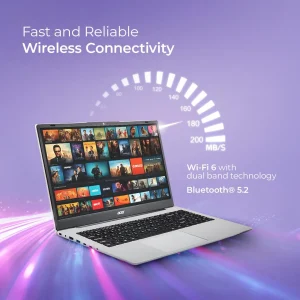
The Ryzen 5 7430U is a capable budget processor featuring 16GB RAM (DDR4 & upgradable to 32HB), 1TB SSD (PCIe Gen 3), 6 cores, and 13 threads; 6 ports:2 x USB 3.0 ports, 2 x Type-C ports, 1 x HDMI port, and 1 x DC-in jack for a power adapter, and is suitable for creating short-form content (like Reels, TikToks, and Shorts). The Ryzen 5 7430U is more than enough processing power to handle these tasks smoothly. It is priced at INR 59,990 on Amazon for the 16GB RAM variant.
Pros
- The RAM is upgradable up to 32 GB
- Ryzen 5 7430U strong processor.
- Comes with a backlit keyboard
- It is priced under INR 60,000
Cons
- Standard 45% NTSC color gamut
- Editors may find a need for an external display
- Does not feature an SD Card reader
HP Victus i7-13620H
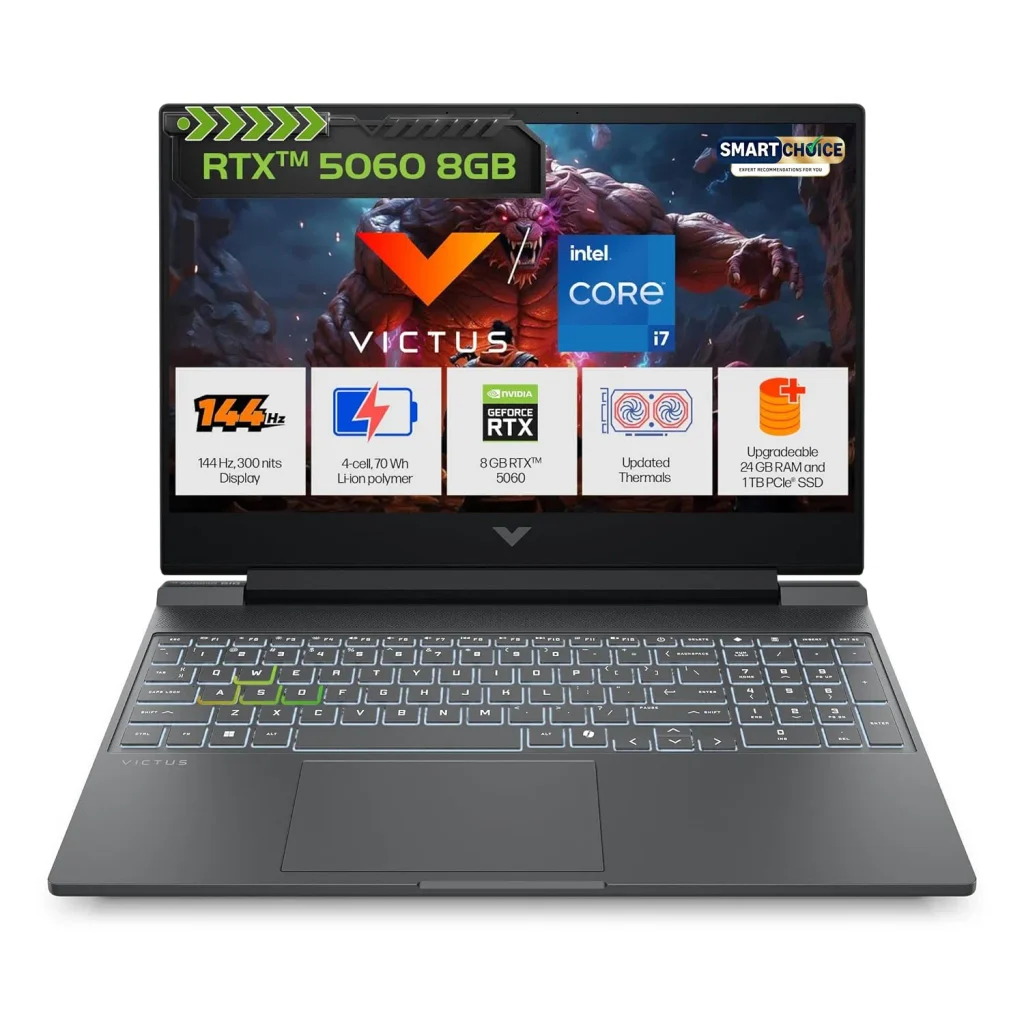
HP Victus i7-13620H is a very good mid-range laptop for video editing. It features an i7 processor with 10 cores (6 performance and 4 efficient cores), 24GB DDR5 RAM, 8GB VRAM (RTX 5060), a 1TB SSD, and a 70Wh battery. The laptop is priced at INR 1,29,990 on Amazon.
Ports & Connectivity:
- 1 USB Type-A 5Gbps signaling rate
- 1 USB Type-A 5Gbps signaling rate
- 1 AC smart pin, 1 HDMI-out 2.1
- 1x 3.5 mm headphone/microphone jack combo
- 1 x RJ-45
- 1x USB Type-C 5Gbps signaling rate (USB Power Delivery 3.1, DisplayPort 1.4a, HP Sleep and Charge)
- Wireless: Realtek Wi-Fi 6
- Bluetooth 5.4
- 1 x SD Card
Unlike standard 16GB laptops that can choke when caching timeline previews, the 24GB DDR5 RAM delivers more comfortable ground for 4k video editing, running heavy background effects, and decoding of H264 and HEVC (H.265) video formats with ease.
Although it offers a solid configuration on paper, its 62.5% sRGB display is a drawback for video editing, particularly when accurate colour reproduction is important. However, this limitation can be addressed by connecting an external 100% sRGB FHD monitor with better colour accuracy, giving you a more suitable display for editing.
Pros
- Offers a highly capable specification in its price range.
- No manual RAM upgrade needed
- It looks clean and fits right into an office or classroom
- All required ports are available on it
Cons
- An additional display is required for video editing because of its 62.5% sRGB display.
- The HP Victus weight approximatly 2.3 KG with is slightly on the heavier side.
ASUS ProArt p16 (H7606)
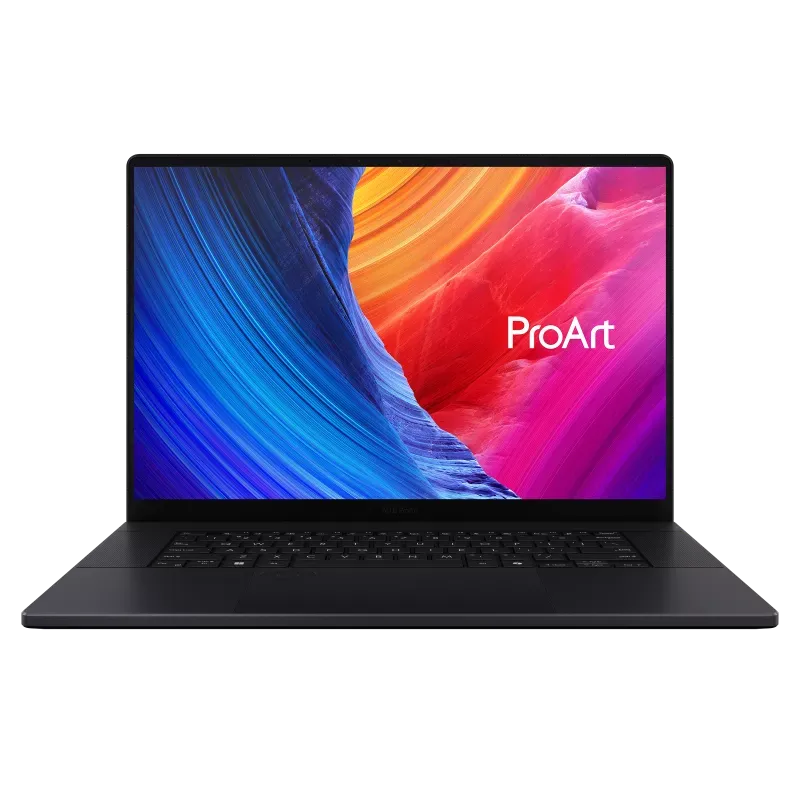
Asus ProArt P16 is a top-of-the-line workstation specially built for creators. The laptop features an AMD Ryzen™ AI 9 HX 370 Processor, 64GB LPDDR5 RAM, 24 GB VRAM RTX 5090, 2TB M.2 NVMe™ PCIe® 4.0 SSD, and a 90Wh Li-ion battery. The laptop is priced at ₹ 529,990.00 on the Asus official website.
It has a premium design, and the display is impressive, which is 16 inches 4K OLED panel with a refresh rate of 120Hz, an anti-reflection display, and stylus support.
Ports & connectivity
- 2x USB 3.2 Gen 2 Type-A (data speed up to 10Gbps)
- 1x USB 4.0 Gen 3 Type-C with support for display/power delivery (data speed up to 40Gbps)
- 1x USB 3.2 Gen 2 Type-C with support for display/power delivery (data speed up to 10Gbps)
- 1x 3.5mm Combo Audio Jack
- 1x HDMI 2.1 FRL
- SD Express 7.0 card reader
Pros
- Top-notch performance with its AMD Ryzen AI9 370 processor, 64GB RAM, and 24GB VRAM
- 16-inch 4K OLED touchscreen; it offers exceptional workflow consistency
- Premium and portable build
Cons
- Loud fan noise: Due to its slim form factor, the laptop can get quite hot near the top keyboard during prolonged rendering sessions.
- Not for hardcore gaming: Despite its powerful hardware, it lacks gaming-centric features like a MUX switch.
Topics You may like
- How Much RAM Do You Actually Need on a Mobile?
- Acer Predator Helios 18 AI: Is It Worth Buying?
- Laptop Buying Guide 2026: Avoid These Costly Mistakes
Frequently Asked Questions
How much RAM do I need for video editing?
For basic 1080p video editing, 16GB of RAM is generally sufficient. However, 32GB is recommended for most video editors, especially when working with 4K footage, multiple applications, effects, or large projects. Professional editors working with 6K, 8K, RAW footage, or demanding AI-powered tools may benefit from 64GB or more.
Is a dedicated GPU necessary for video editing?
A dedicated GPU is not essential for basic video editing, but it can significantly improve performance in demanding workloads. A dedicated graphics card is particularly useful for GPU-accelerated effects, color grading, AI features, and faster rendering and encoding. For serious video editing, an NVIDIA GeForce RTX or comparable GPU is a good choice.
Is an RTX 5060 enough for video editing?
Yes. An RTX 5060-class GPU can provide excellent performance for most 1080p and 4K video editing workloads. However, editors working with complex effects, 6K/8K footage, heavy AI workloads, or professional color grading may benefit from a more powerful GPU with additional VRAM.
Is 16GB RAM enough for 4K video editing?
16GB can handle some 4K editing projects, but it may become a limitation when working with large timelines, multiple video layers, high-resolution footage, or other applications running simultaneously. 32GB RAM is a better choice for a smoother and more future-proof 4K editing experience.
How much storage do I need for video editing?
A 1TB SSD is a good starting point for video editing. Video files can consume storage very quickly, so 2TB or more is preferable for users who regularly work with large projects. You can also use an external SSD or HDD for storing completed projects and archived footage.
Is a 4K display necessary for video editing?
No. A 4K display is not mandatory for video editing, particularly on smaller laptop screens. A high-quality Full HD or 2.5K display with good brightness and accurate colors can provide an excellent editing experience. For professional color work, prioritize color accuracy and wide color-gamut coverage over resolution alone.
What display specifications are important for video editing?
Color accuracy is one of the most important display characteristics for video editing. Look for a display with high sRGB coverage for general content creation and strong DCI-P3 coverage for more demanding workflows. Good brightness, contrast, resolution, and consistent colors are also important.
Is CPU or GPU more important for video editing?
Both are important, but their impact depends on the software and workload. The CPU handles tasks such as timeline processing and some encoding operations, while the GPU accelerates effects, rendering, color grading, and other GPU-supported workloads. A balanced laptop with a powerful CPU and dedicated GPU is generally the best choice for serious video editing.
Do I need a gaming laptop for video editing?
No, but gaming laptops can offer excellent value for video editors because they often combine powerful CPUs, dedicated GPUs, good cooling systems, and upgradeable storage. However, creators should also pay close attention to the display, weight, battery life, fan noise, and color accuracy rather than choosing a laptop based solely on gaming performance.
Is cooling important for video editing?
Yes. Video rendering and exporting can keep the CPU and GPU under heavy load for extended periods. A good cooling system helps the laptop maintain higher performance for longer and reduces the risk of thermal throttling. When comparing laptops, look beyond specifications and consider their sustained performance and thermal design.